GOOGLE SHEETS GUIDE · OCTOBER 20, 2026
Build an automatic Google Sheets dashboard you can keep up to date
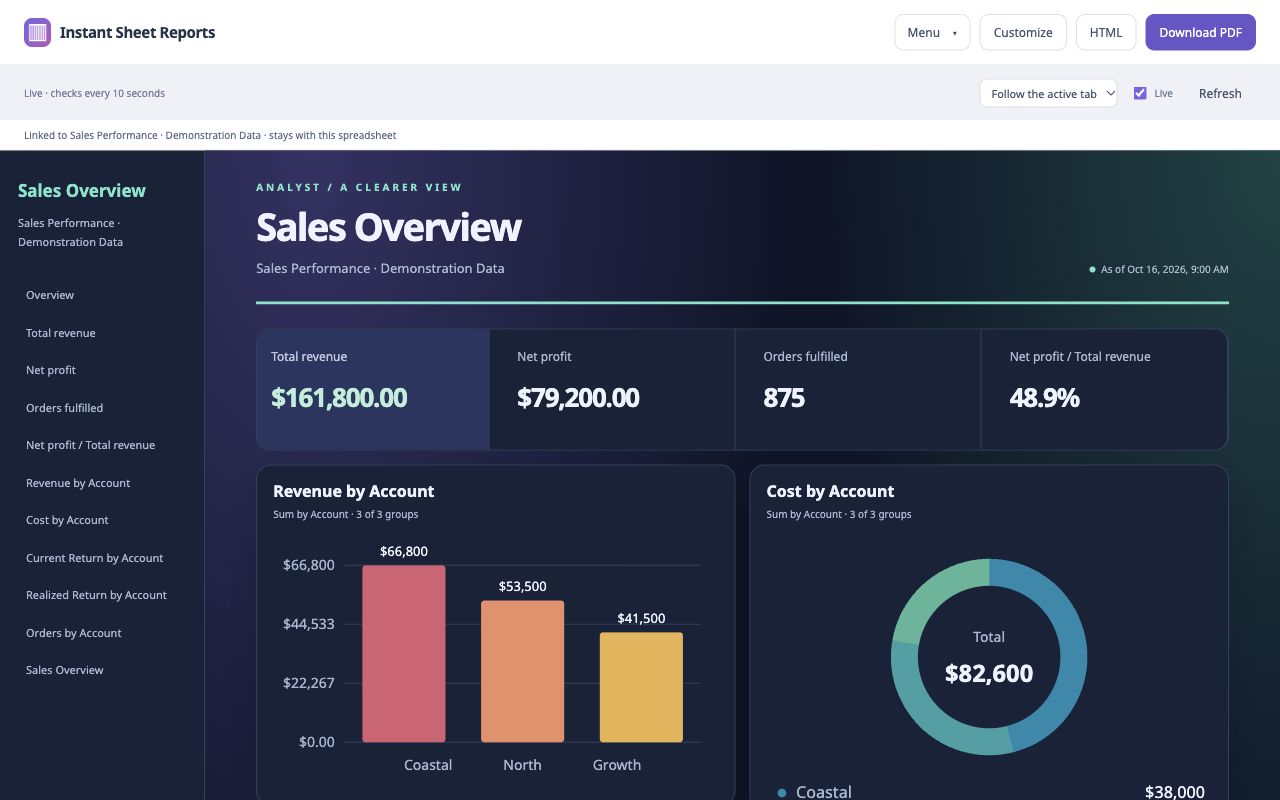
An automatic Google Sheets dashboard helps you see the shape of a workbook before building every chart by hand. Instant Sheet Reports recognizes candidate tables, headings and formula totals, then gives you controls to refine the result.
Generate first, then choose what matters
- Open a Google spreadsheet in desktop Chrome and launch Instant Sheet Reports.
- Select the worksheet you want to present in the dashboard.
- Check detected tables and KPI widgets against the source cells.
- Choose a layout and adjust charts, titles, sorting, filters and visible table columns.
For a sales update, start with revenue, profit and order totals, then compare revenue by region or account. Do not sum a precomputed total again with the detail rows: review the recognized range and aggregation.
Keep a live view beside your sheet
Use Pop out for a separate dashboard window connected to the original spreadsheet. With Live enabled, it checks periodically while visible. Edits in the sheet can then flow into the dashboard. Google’s response time, workbook size and network conditions affect refresh timing; this is not a scheduled background reporting service.
Save the presentation, read fresh data
Your presentation settings restore when you reopen the same worksheet, while Reports reads its current data. Renaming or rearranging worksheet tabs preserves settings through stable worksheet IDs. Chrome, Safari and the native Sheets edition keep their own settings; they do not synchronize customizations across editions.
Choose live dashboard or finished snapshot
Keep the live pop-out open during your own work. For a meeting or client handoff, download PDF or open standalone HTML. Those exports preserve the presentation at the moment you generate them and do not keep refreshing.
What does “automatic” leave for you?
You still choose the message and check the numbers. Recognition is heuristic, so unusual layouts can need manual ranges, widgets or charts. Reports uses calculated values supplied by Google and does not independently evaluate formulas. No spreadsheet content is sent to an AI provider or the publisher’s licensing service.