GOOGLE SHEETS GUIDE · OCTOBER 20, 2026
How to highlight the selected row and column in Google Sheets
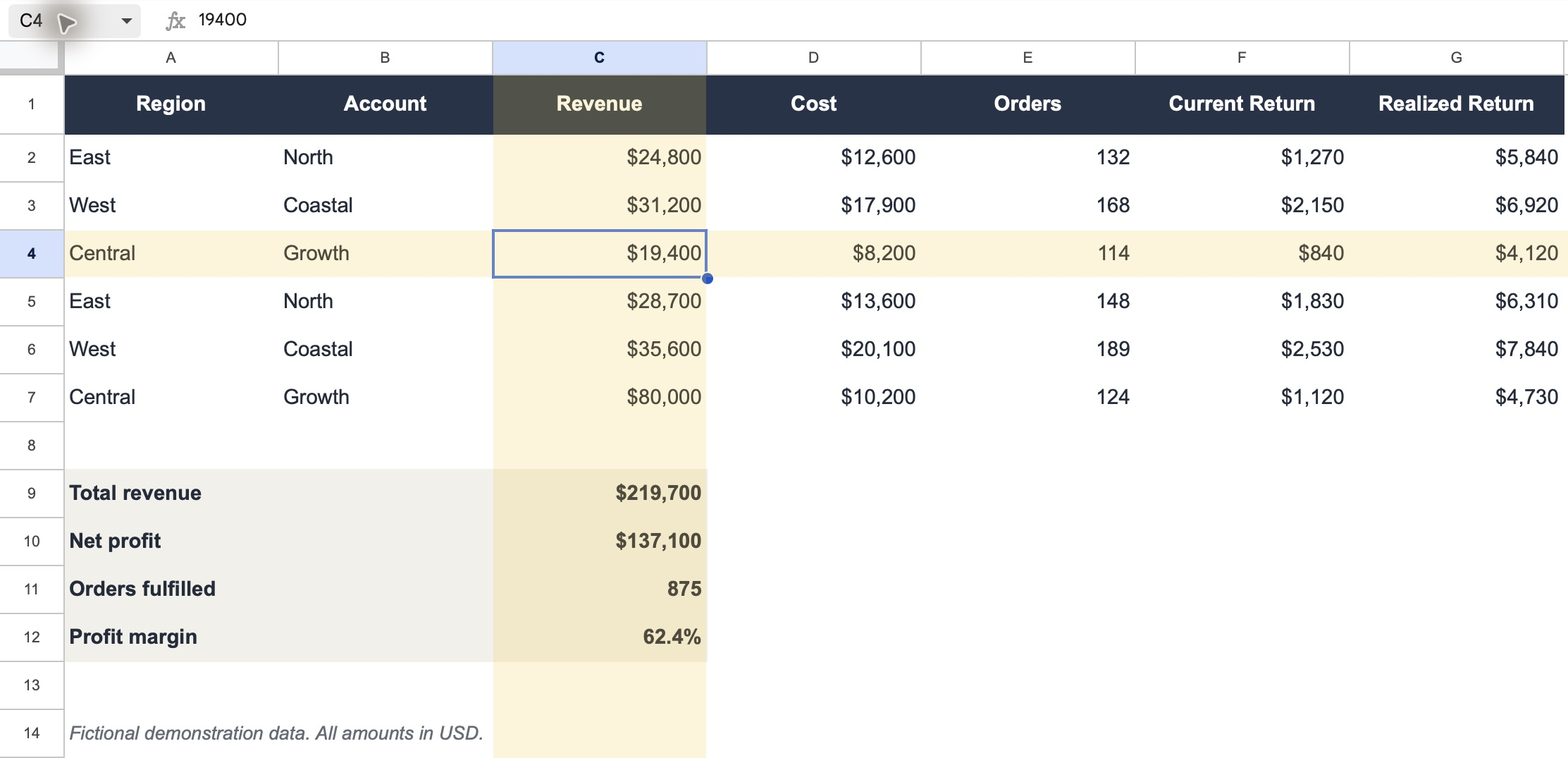
When you read across a wide spreadsheet, it is easy to match a number to the wrong row or column. Instant Sheet Highlighter adds a private guide around the active cell so you can keep your place.
Turn on the guide
- Install Instant Sheet Highlighter in desktop Chrome.
- Open a Google Sheet, or reload one that was open before installation.
- Open the extension’s toolbar popup and continue with Google to start the 14-day trial.
- Enable Row and Column, then choose a tint and strength.
- Select cells with the mouse or use the arrow keys. The highlights follow your selection.
Choose row, column or both
Row helps you read across a record. Column helps you follow a measure down a table. Turn both on for a crosshair at the selected cell, or turn both off when you want an uncluttered view. The switches are independent and share the chosen color and strength.
It does not recolor the shared spreadsheet
The highlight is a temporary browser overlay. It does not write cell values or formatting, add formulas, or create undo-history entries. Collaborators do not see your guide. If you want permanent highlighting that everyone can see, use Google Sheets’ own formatting tools instead.
What happens when you scroll?
The overlay tracks the selected row and column as you scroll, including frozen panes. If the guide does not appear after installation, reload the sheet and check that the extension has access to Google Sheets.
Available editions and price
Chrome is available now. Safari on Mac is awaiting App Store approval. There is no native Google Sheets add-on for this private overlay. Try it free for 14 days, then choose a US$0.99 one-time permanent license for your marketplace. There is no subscription or automatic charge.